
Connecting to WiFi and/or EnergyKeeper appUpdated a month ago
Initial setup requirements
To configure the Energy Keeper app with your Sorein Power Station, the following requirements must be met:
- WiFi must be present. The Sorein can't connect to 5 Ghz WiFi, so be sure a 2.4 GHz network is available.
- The Sorein must be turned on.
- Your phone must be connected to the Internet via cellular or WiFi, and Bluetooth should be enabled as well. You should stay close to the power station, so that it can use Bluetooth for the setup process.
To connect the Sorein Power Station to WiFi
- Start the EnergyKeeper app.
- Set up an account, following the instructions in the app.
- Turn on the power station. The white WiFi indicator on the front panel (near the top right) should be flashing. A slow flash means it has already been connected to WiFi and is looking for that network. A rapid flash means it is in setup mode.
- If the WiFi indicator is not flashing rapidly, press the DC5521 button on the front panel for 5 seconds, until it beeps.
- In the Energy Keeper app, tap "Add Device".
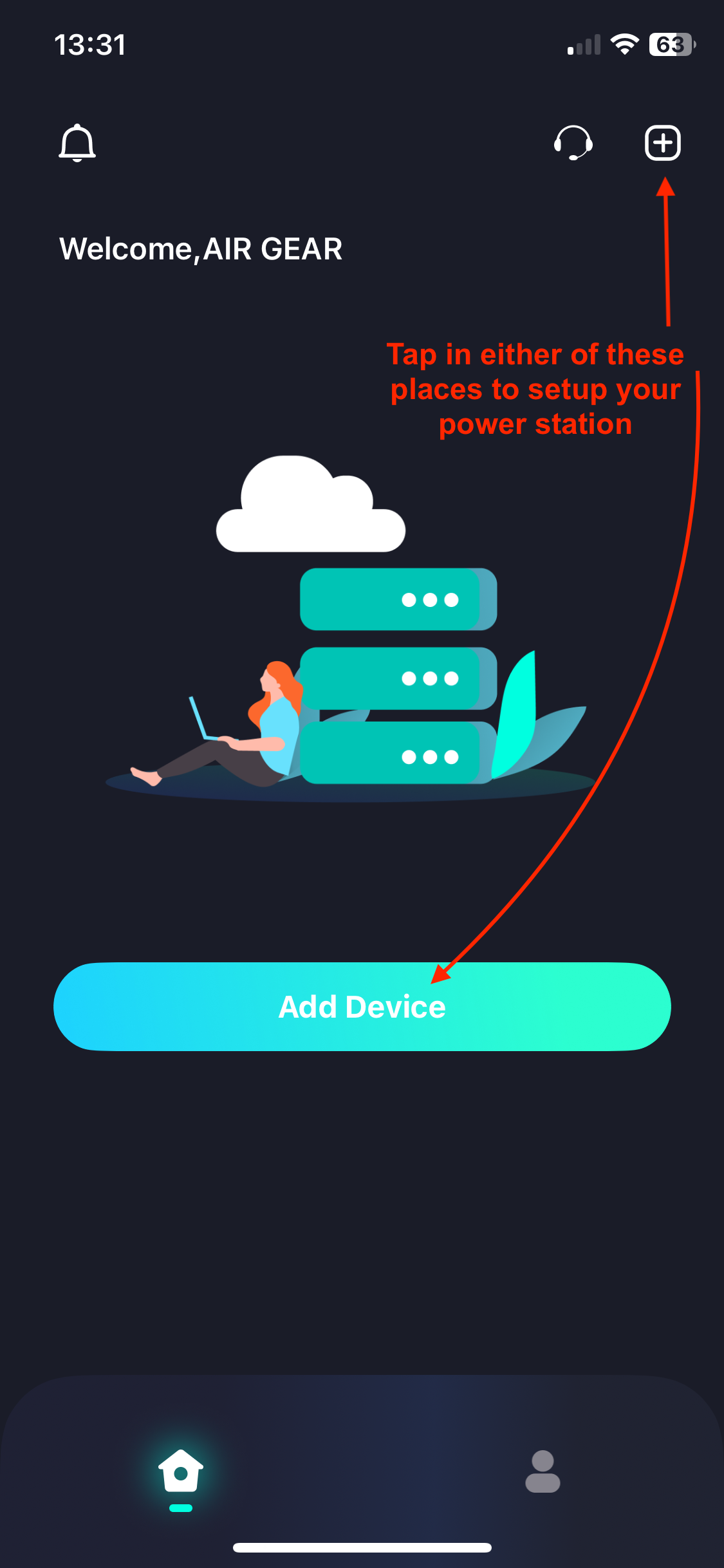
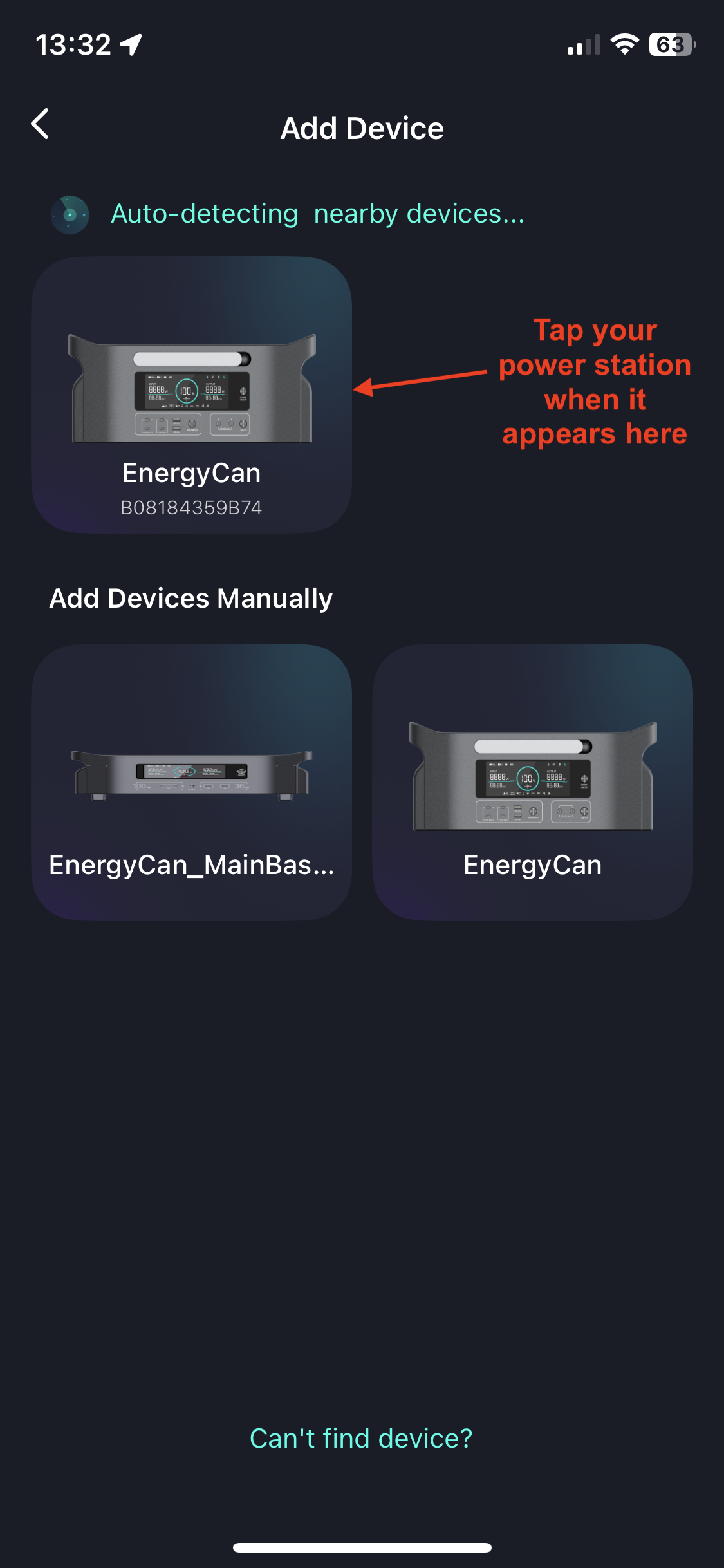
- The Energy Keeper app will detect your power station and show it on the "Add Device" screen, after a few seconds. Tap the picture of the power station (in the app) when it appears.
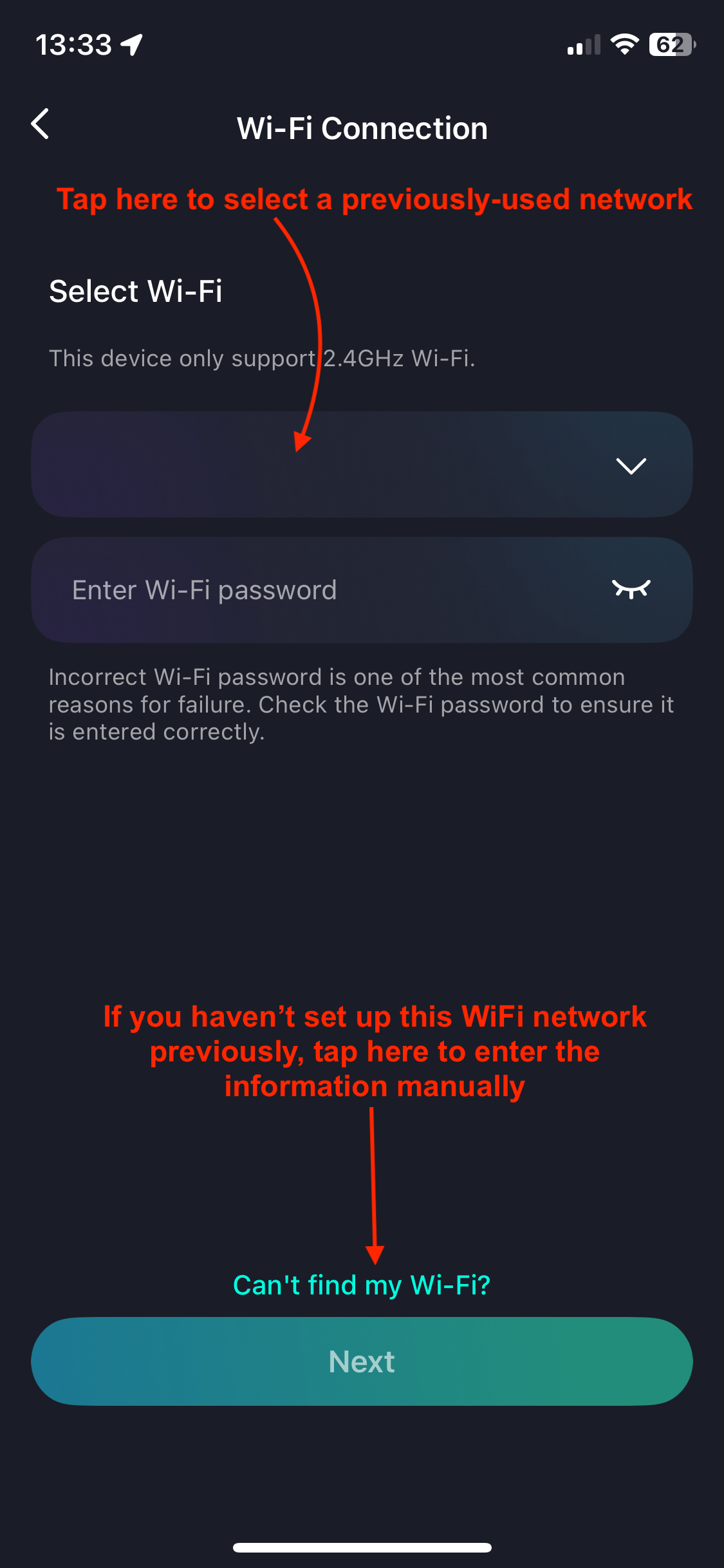
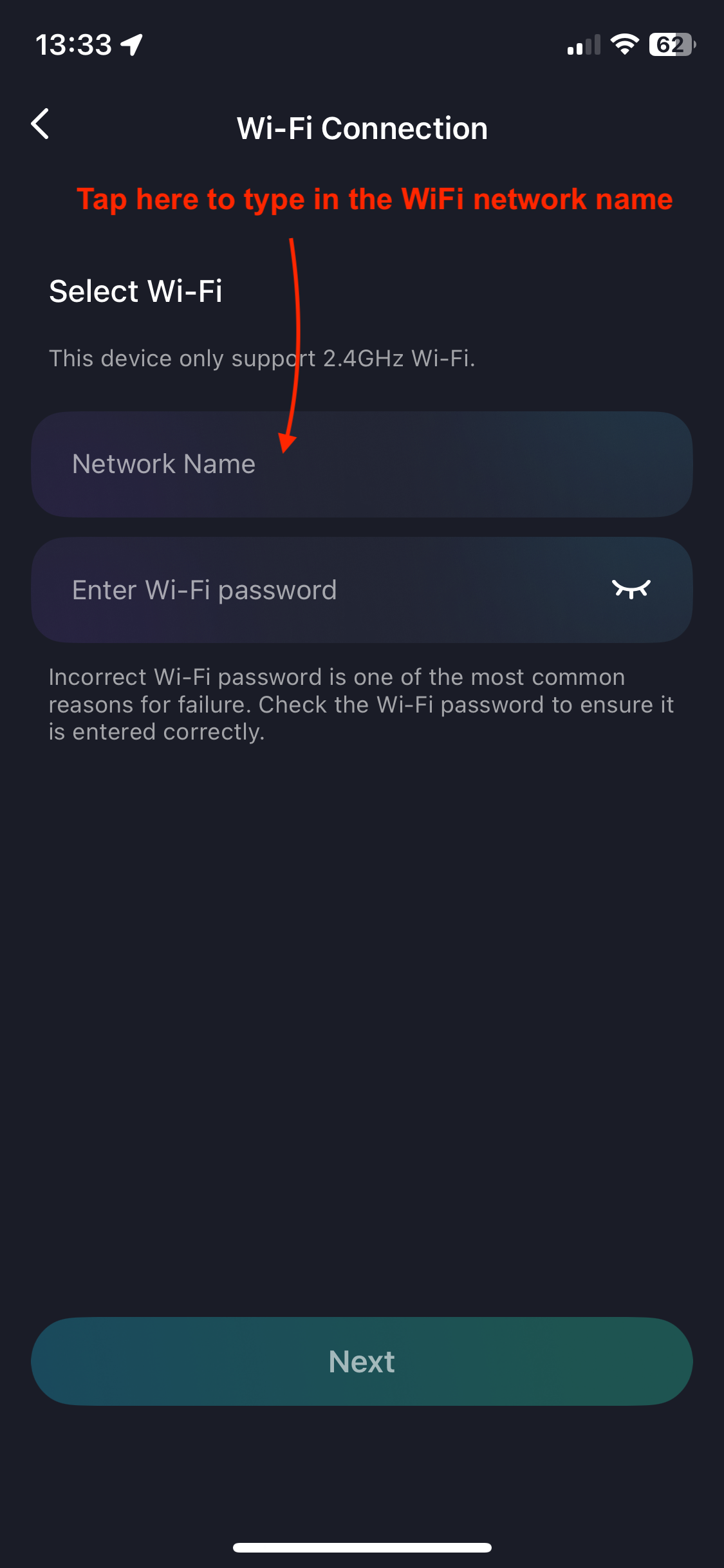
- The next screen will ask you to select a WiFi network. For the first time setting up, disregard this and tap "Can't find my Wi-Fi?" at the bottom of the screen.
- Enter the WiFi network name and password. The Sorein Power Station will connect to the WiFi network. The white WiFi symbol will stop flashing.
- The WiFi connection will take a minute to set up.
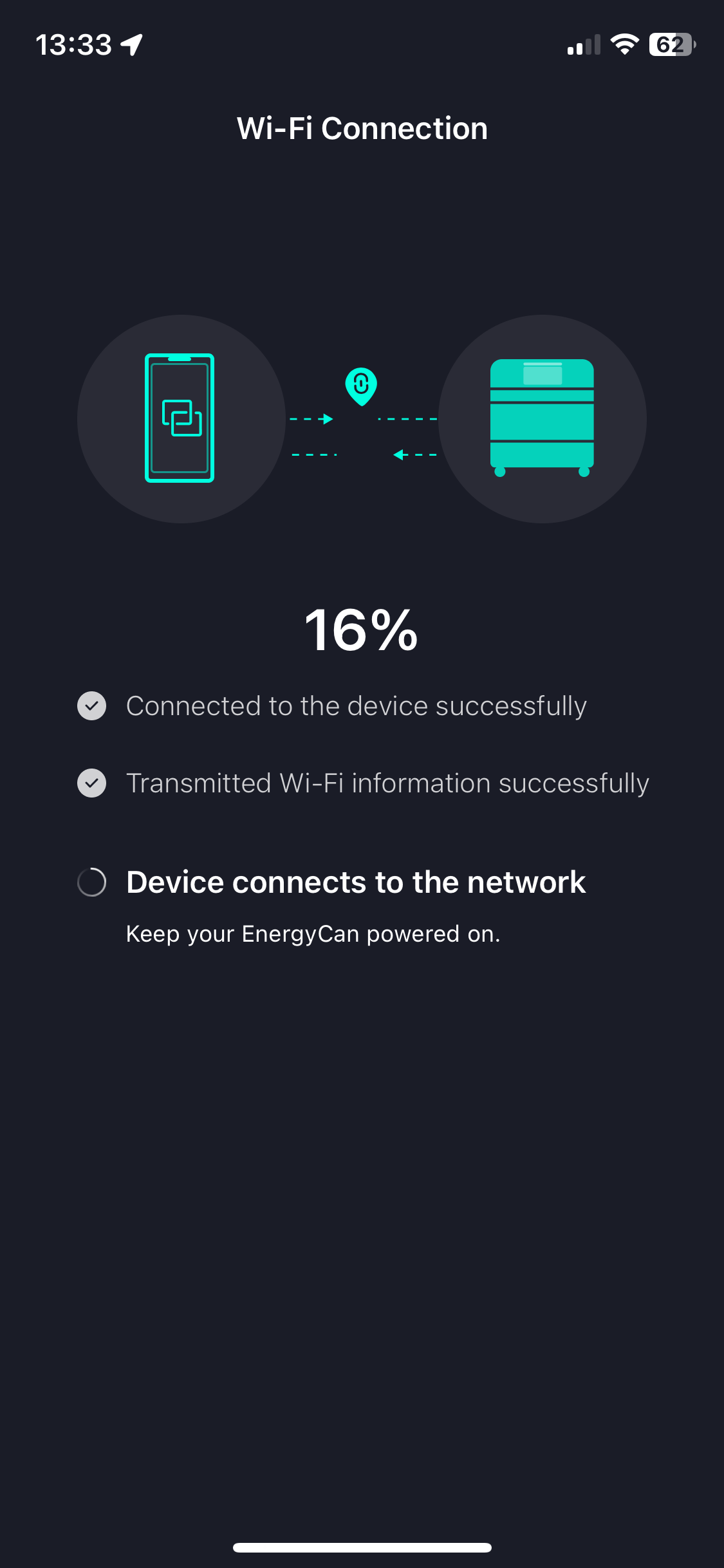
Once the Sorein Power Station is connected to WiFi, you can choose to give your power station a custom name, and begin using the Energy Keeper app. Tap "Enjoy product" to continue.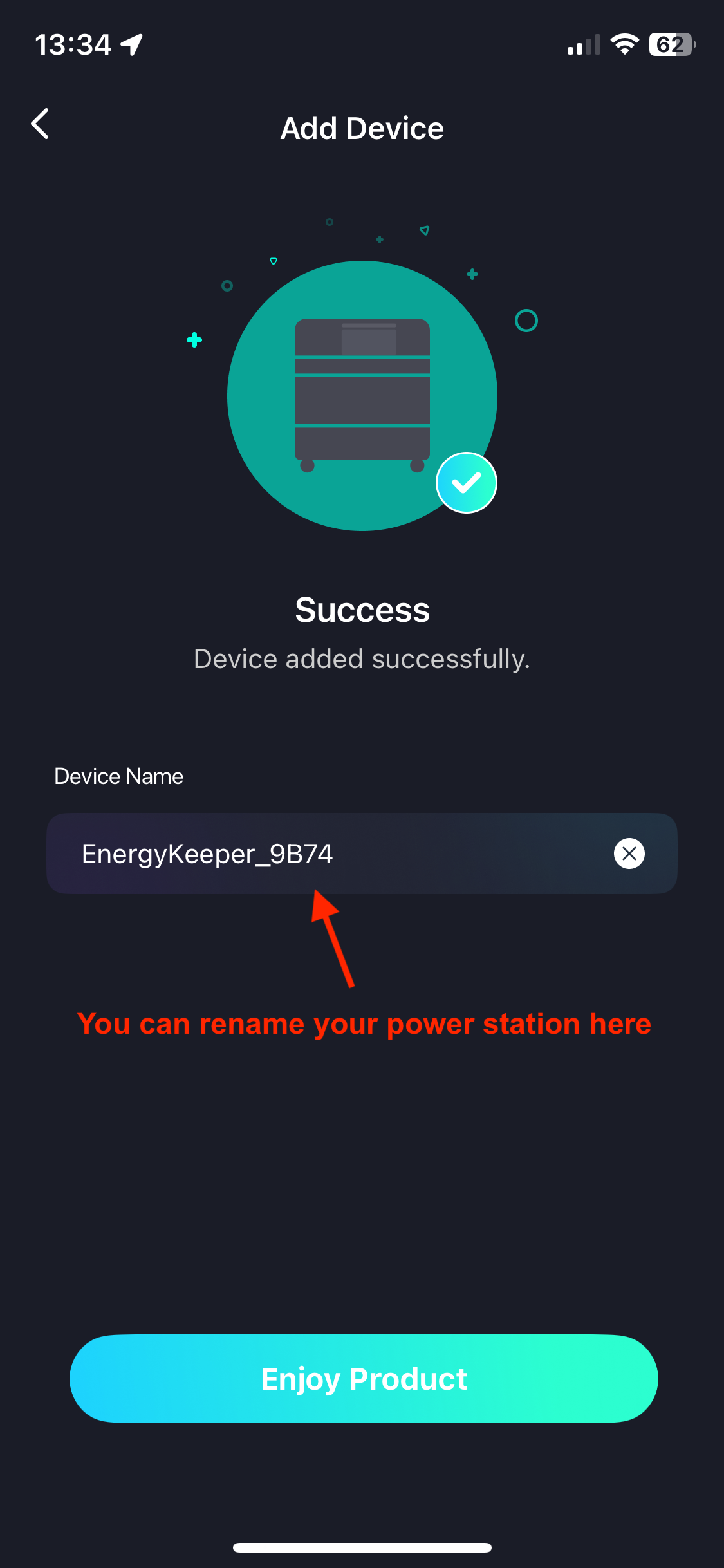
After successful setup
Energy Keeper will give you access to additional features of the Sorein Power Station. You can:
- Remotely monitor its level of charge, charging input, and power output.
- Toggle the charging mode between "Superfast" and "Quiet".
- Turn on or off output banks remotely.
- Turn off beep sounds.
- Share access to your Sorein with another person who has the Energy Keeper app.
- Firmware updates can be sent over-the-air to your Sorein Power Station. This helps with remote troubleshooting, if needed.
Changing WiFi networks
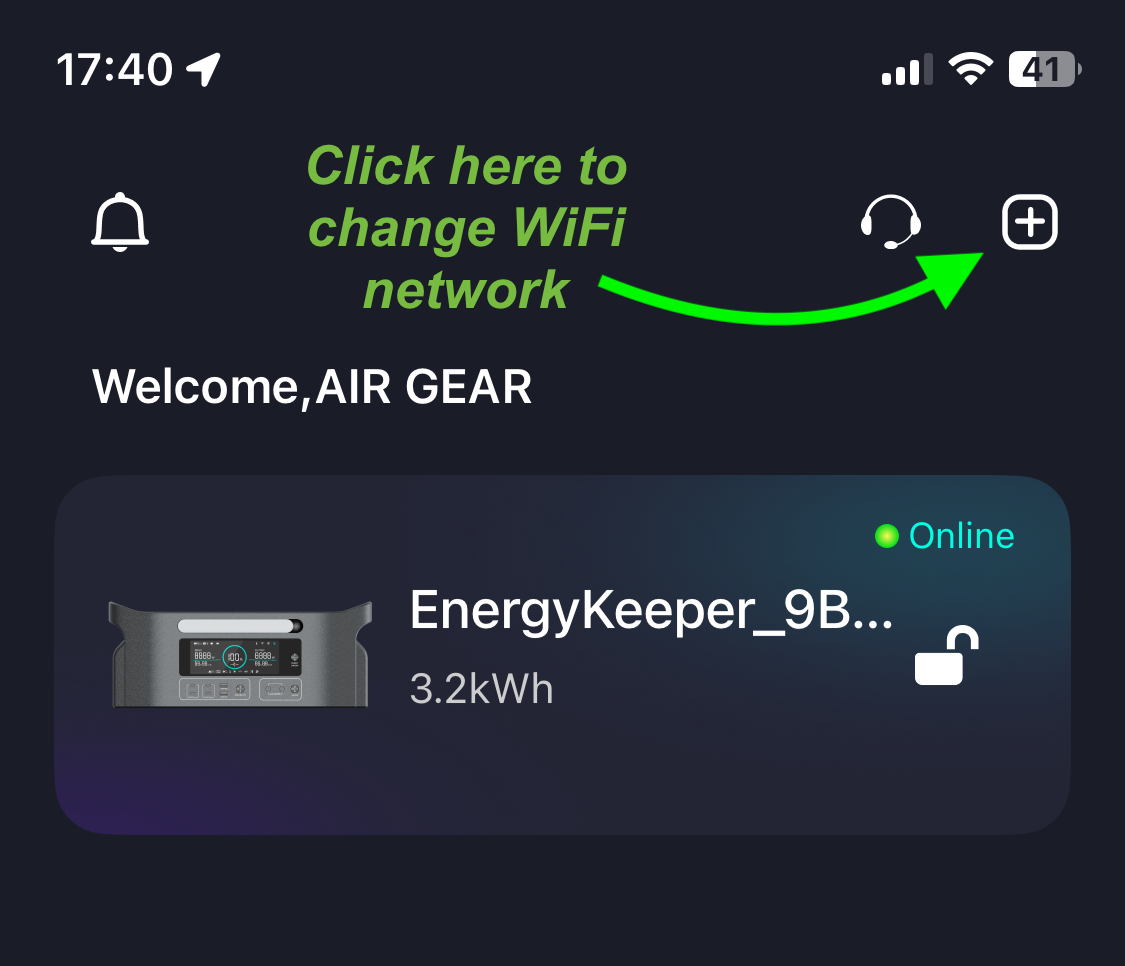 The Sorein Power Station can only connect to one WiFi network at a time. If you wish to change to a different WiFi network, go through the setup steps again.
You will need to press the DC5521 button for 5 seconds in order to put the Sorein in setup mode again.
Your Sorein Power Station will disconnect the prior WiFi, and connect to the one you specify. The prior network will be saved for future use, so you can pick it in Step 7 (above) when you want to re-connect.